The Management Center is home to the Organization Dashboard, which provides managing organizations a daily pulse check to monitor the health of an entire organization. Working these tiles to 0 ensures all areas of opportunity within the revenue cycle have been reviewed and resolved.
User Permissions
Managing Organization Admins, Organization Admins, and Managing Organization users can access the Management Center. For more information on user profiles and permissions, click here.
Access the Organization Dashboard
To access the Organization Dashboard, navigate to the Management Center.
Tile Definitions
The Organization Dashboard has seven tiles, each designed to highlight different areas of the RCM where manual intervention may be required. Working these tiles to green every day ensures organizations increase their collection rate and decrease the number of days to close.
-
Clicking the VOB tiles will direct users to the Work Center > VOB section of the system. In this area, users can identify patients whose benefits remain unverified in the RCM through an eligibility check or by calling the payer.
After benefits are confirmed, users can click Benefits Successfully Verified under the Benefits tab in the patient's insurance set. This action updates the tile, helping reduce rejections and denials due to incorrect or inactive insurance details.
- Overdue: The count of newly entered prospective or admitted patients who need to have their benefits verified. According to your organization's setup, the VOB is overdue and needs to be verified promptly. Clicking on this tile takes you to the Work Center > VOB.
- 0-30 Minutes: Newly entered prospective or admitted patients need to have their benefits verified within the next 30 minutes or less. You still have time to verify benefits before this is considered overdue. Clicking on this tile takes you to the Work Center > VOB.
- 31-120 Minutes: Newly entered prospective or admitted patients need to have their benefits verified within 31 to 120 minutes, or they will be marked as overdue. You still have time to verify benefits before this is considered overdue. Clicking on this tile takes you to the Work Center > VOB.
- 120+ Minutes: There are newly entered prospective or admitted patients who need to have their benefits verified within the next two hours. Depending on your organization's setup, you may have more than 2 hours to complete the VOB. Clicking on this tile takes you to the Work Center > VOB.
- Inactive Coverage: When Batch Eligibility is enabled, this tile displays all patients flagged with inactive coverage after the last bulk eligibility check (which can be manual or scheduled). Clicking on this tile takes you to the Work Center > Eligibility Status.
- Coverage Needs Review: When Batch Eligibility is enabled, this tile displays all patients with coverage changes that require review after the last bulk eligibility check (which can be manual or scheduled). Clicking on this tile takes you to the Work Center > Eligibility Status.

-
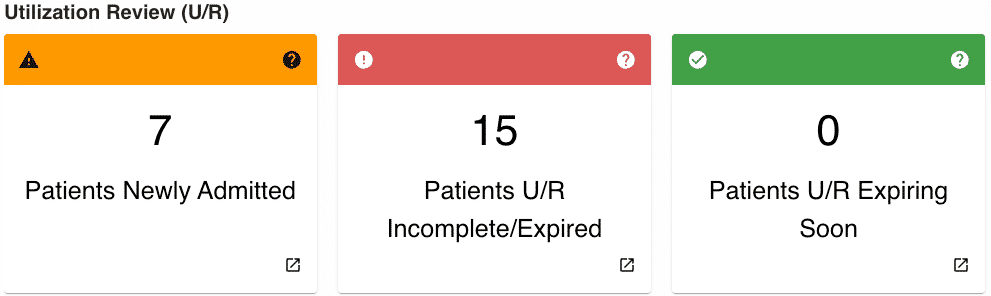
Clicking the U/R tiles directs users to the Work Center > Utilization Review sections of the system. There, users can identify patients who lack a U/R plan or have plans nearing expiration.
If a U/R plan is needed, users can create it either in this section or within the patient's profile. Once a plan is created or the end date of an existing plan is extended, the tile updates accordingly. If no U/R is required, users can manually dismiss the notification from the Work Center.
Actively tracking and managing these tiles helps prevent denials due to missing payer prior authorization.
-
Each Claim Submission tile links to a subtab in Work Center > Insurance Claims. Turning these tiles green daily ensures timely claim creation and submission, and quick resolution of rejections to keep days-to-close low.
-
Patients With New Claims Pending: This option shows patients with treatments from the attendance calendar that have not yet been converted into claims. Clicking redirects to the Create New Claims tab in the Work Center. For more information on creating new claims, click here.
-
Patients With Claim Corrections Pending: Shows patients with pending corrections that need review after claim modifications. For more information on creating corrections, click here.
We recommend reviewing all corrections by clicking Compare to see suggestions. The Claim Value is the initial submission; the Current Value shows suggestions. The Claim Instance ID updates by one iteration (e.g., -1.2). Usually, the bill type for the claim changes to the 7 correction claim bill type. - Claims Rejected - Pending Review: Shows rejected claims needing review, with clicking leading to Currently Held/Rejected. For more information on managing rejections, click here
-
Best Practice: Click on the Claim ID, which will take you to the Work Claim screen (Individual Claim Follow-Up). Click and hover over Processing Events to get the full details about the rejection or held status. If the issue is easily solvable by changing information in the RCM and resubmitting the claim, you can:
-
- Review Corrections
- Check for Corrections
- Resolve the claim
- If the issue is more complicated, like an enrollment or registration issue, you can work on that issue outside of the RCM, but also mark each claim with an issue tag, change the queue to an Issue queue, create a note stating the current issue and action steps, and set a follow-up date to ensure that you are following up in a timely fashion.
- When a claim is resubmitted, a note is automatically generated stating who resubmitted the claim. The rejection will be removed from the Rejected list after it is resubmitted.
-
- Claims Ready For Review/Submit: Shows created but unsubmitted claims, with clicking leading to Submit Claims.

-
-
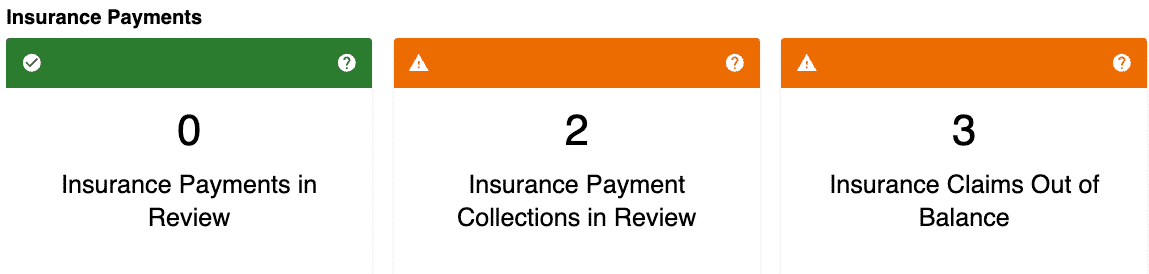
The Insurance Payment tiles highlight issues with payments that require further review to ensure they are posted accurately and promptly. Resolving these issues to green status confirms that the money received has been adequately accounted for, posted correctly, and accurately reflected in reports.
- Insurance Payments in Review: This tile shows the number of payments (remits) received but not automatically matched due to discrepancies in the EDI files. This section will flag any payment that is not straightforward. For example, recouped amounts, name mismatches, and $0 payments are usually flagged for review. To ensure the payment is routed to the correct claim, a user must manually review and match it. For more information on payment matching, click here.
- Insurance Payment Collections in Review: This tile indicates the number of payment collections (individual checks) needing additional review. Clicking on the tile opens the Review Insurance Payment Collections subtab, where irregular collections can be identified and resolved. For more information on reviewing payment collections, click here.
-
Insurance Claims Out of Balance: This tile displays the count of insurance claims with balance discrepancies. Clicking it takes users to the Insurance Claims Out of Balance subtab, where they can identify and fix balance issues. For more information on reviewing out-of-balance insurance claims, click here.
-
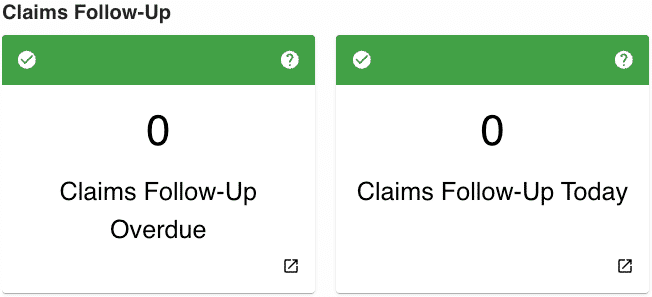
The Claims Follow-Up tiles show the number of claims requiring further action. Reasons for follow-up include contacting the payer to verify status and reviewing overnight payments before closing the claim.
A Managing Organization Admin can configure these tiles by navigating to the Managing Organization Admin > Configuration > Account Settings. For more information on managing these settings, click here.
-
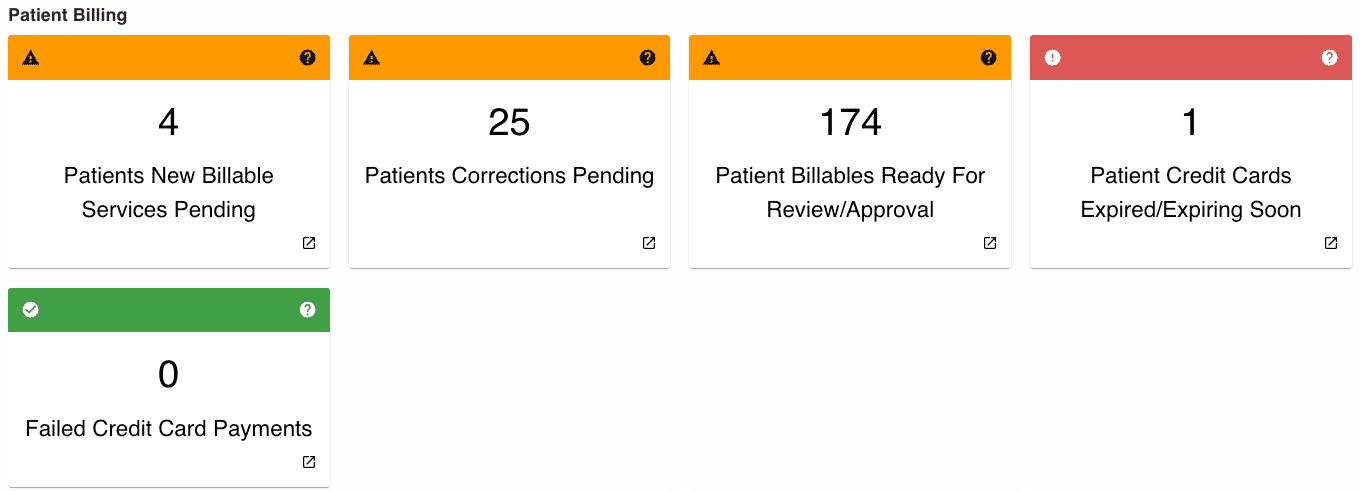
The Patient Billing tiles are accessible to organizations that have the Patient Billing module. Each tile directs the user to a subtab within the Work Center > Patient Billing section of the system RCM.
- Patients New Billable Services Pending: This tile reflects the number of patients with private pay services that have been submitted from the attendance calendar but have not yet been converted to a patient billable.
- Patients Corrections Pending: This tile reflects the number of patient billables flagged for correction due to an information change in the system.
- Patient Billables Ready for Review/Approval: This tile indicates the number of patient billables created but not yet approved. When an insurance claim is closed, the system will automatically generate a new billable and redirect it to this subtab for approval.
- Patient Credit Cards Expiring Soon: For organizations that use merchant services, this tile helps identify patients who will soon need updated card information on file to prevent disruption to their payment plan.
-
Failed Credit Card Payments: Similar to the previous tile, this option is available for organizations that use merchant services. This tile will indicate the number of patients whose card was declined when run as part of a payment plan.
-
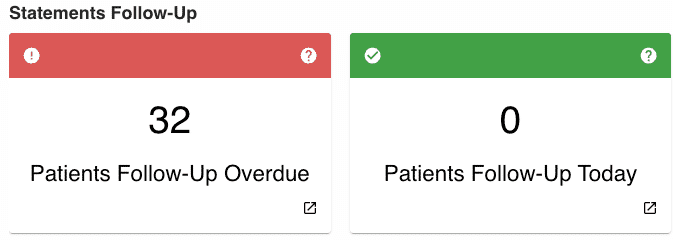
The Statements Follow-Up tile helps track patients' outstanding balances on their latest statements. These tiles can be set up by an Organization or Managing Organization Admin through the Organization Admin > Configuration > Patient Billing section of the RCM. For more information on patient statements, click here.
Comments
0 comments
Article is closed for comments.